

The new tools in the client area
In the previous post we explained how we've rebuilt the client area inside and out. Here we want to go through the new tools one by one: there are quite a few, and we think they deserve more than a line in a changelog.
They all share the same underlying idea, the one that has guided us over these months: before changing anything we want to show you what's going to happen, and afterwards we want you to be able to go back.
DNS assistant: paste what you've been sent
When someone sends you records to add, whether it's an email platform, a payment gateway or an e-signature service, until now you had to translate them by hand into the panel's format and wait to see what broke along the way.
Now you simply paste what you've been sent, in whatever format it came in, because the assistant understands seventeen different formats and also merges SPF records instead of leaving you with two, one of the mistakes we've had to fix most often from support. Before applying anything it shows you the impact it will have on the website, on email and on the certificate, and once applied it can be undone and checks propagation on its own.
If your domain uses external DNS the assistant is still there, in read-only mode, so it can at least tell you what's missing.
Change the PHP version knowing what will break
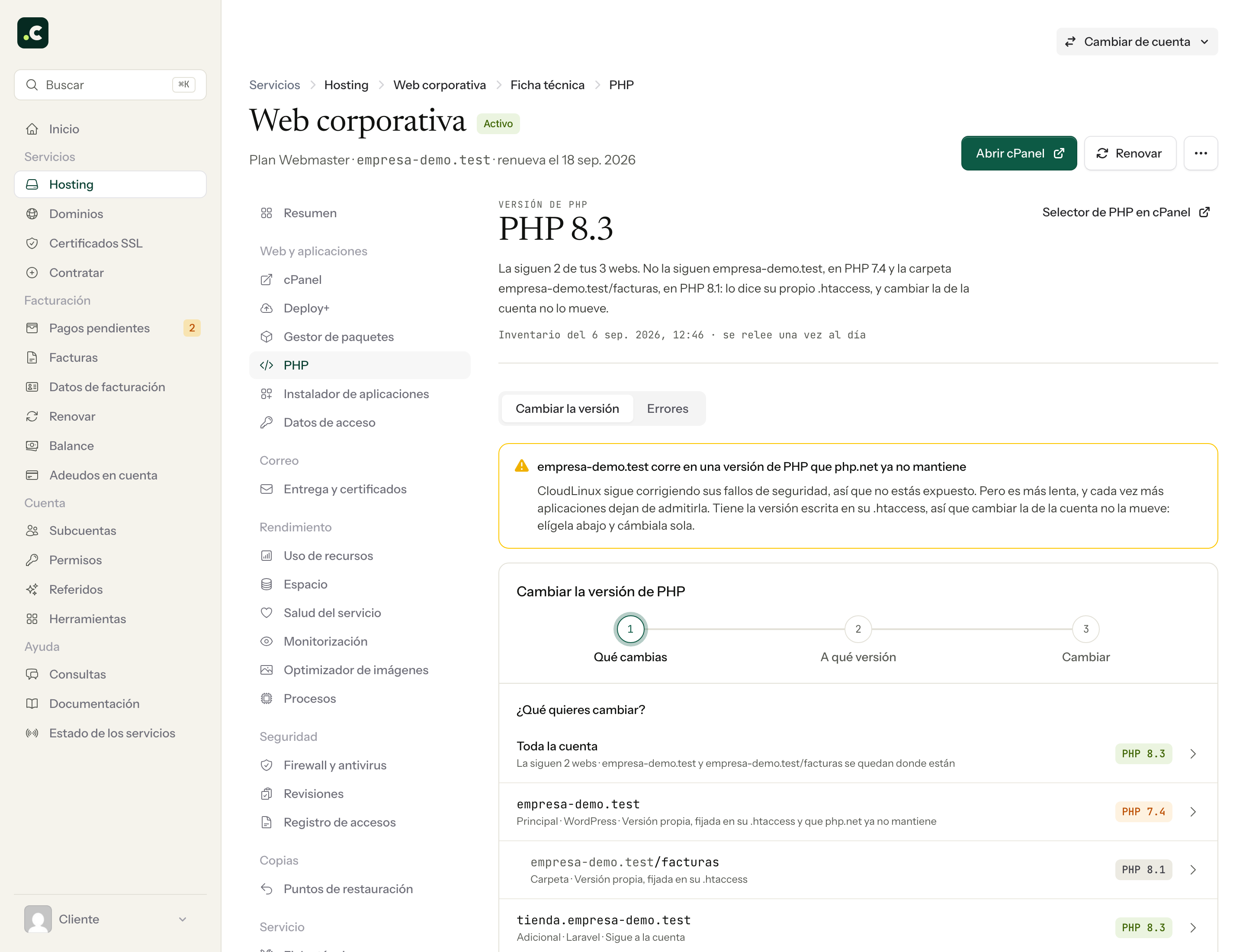
Changing the PHP version has always been one of those things you do with your fingers crossed, so we wanted it to stop being a blind drop-down:
- A plan per site before touching anything: it checks your applications' compatibility against wordpress.org and Composer, checks the syntax with the target binary and reviews the extensions you use.
- HTTP check after the change, and automatic rollback if the website stops responding.
- And 24 hours to go back even if everything went well.
The PHP page now also shows which version each website runs, which doesn't always match the account's, because an .htaccess can keep a domain on 7.4 while the selector says 8.3. That detail is behind the classic "I changed the version and nothing changed", and seeing it written down solves it on its own.
Disk space: know where it goes, and get it back
Disk space stops being a percentage and becomes a list of candidates with how much each one saves, which usually include email trash folders, backups someone left inside the account itself, caches, logs and WordPress transients.
The clean-up is confirmed before it runs, runs in the background and only touches paths on an allowlist we have defined, never whatever it fancies. And if there's space to recover, the panel tells you itself, without you having to go looking for it.
Restore a website or a mailbox yourself
Restore points brings two assistants built on JetBackup:
- A site: choose files, database or both, with the implications of each option explained before you accept.
- A mailbox: choose between adding what's missing or replacing what's there.
With progress in view and a notice when it finishes. Whatever the assistants don't cover is still in JetBackup.
Technical sheet: what really runs
Here we've gathered on a single page everything in the account read directly from the server rather than from the sales sheet, which is where things tend not to match: each site's effective PHP, the domains, cron, forwarders, FTP, ModSecurity and permissions. It's read on demand and shows you the status as it arrives.
WordPress health
As it's what gets installed most on our servers, this one has its own post: there's a new screen that tells you, for each WordPress, what wp-admin can't tell you, and also lets you fix it right there. We cover it in full in WordPress health.
Processes: see what's running and close what gets stuck
When a website hangs, the first thing anyone asks is what's running, and until now you had to ask us. Now you can take a snapshot of your account's processes and see what's there, with its usage, and close the one causing trouble without opening a ticket.
We've been especially careful about two things here. First, everything runs inside your account and never as the server administrator, so there's no way this can touch anything that isn't yours. Second, a PID alone doesn't authorise closing anything: the snapshot hands over an identifier that ties together the account, the process, the moment it started and its command, and we check it again just before closing it. It may seem excessive, but PIDs get reused, and without this the real risk is closing a new process that had nothing to do with it.
Infrastructure processes you can see but that aren't yours, such as the Redis service, are deliberately out of the button's reach.
Error log: find the log, whatever it belongs to
You could already check the PHP error log, but only the account's central one, and in practice the one you need is almost never that: it's WordPress's debug.log, Laravel's storage/logs, PrestaShop's, or the error_log left inside a particular folder.
The usual problem was finding them, and it turns out we already had them located without realising. Since the panel goes through your account every day to know which application runs on each domain and in which folder, the application tells us where it writes its errors. So the viewer now has a drop-down with every log that actually exists in your account, and you just choose which one to look at.
We'd rather do it this way than crawl the disk for .log files, which besides being slow fills up with false positives: caches, old backups and node_modules are full of them.
And if there's no log because your PHP isn't saving one, you can turn on debugging from the panel itself for an hour. It switches on, collects whatever happens and switches itself off when it's done, which is exactly what you want: leaving debugging on in production is one of the things we've found most often when reviewing a website.
Deploy+, with five providers
Deploy+ is no longer tied to GitHub and now also works with GitLab, Bitbucket, Gitea/Forgejo and generic Git, each with its own credentials and signed webhook. Setup takes three steps and checks access before letting you continue, and the deployment history lets you go back to any previous version when something goes wrong.
It also works on the accounts of a Multicuenta plan, one of the things you asked us for most.
Renewals: the calendar and what you'll pay
We've added a renewal calendar with a spending forecast, calculated with the same arithmetic proforma invoices use, so there are no surprises between what you see there and what is invoiced later.
Domain transfers are also no longer an opaque status where all you can do is wait: they now appear as a progress line showing what's left and, when something stalls, the reason translated into something understandable along with what you need to do.
Reviews
You can now ask us for a review of a service from the panel itself, without opening a ticket. We send you back a report with the verdict, the findings and, this is what really makes it useful, the specific panel actions that solve each of them.
What's coming
You can check what we have in progress at any time on the roadmap, which we keep up to date. And if you miss something, honestly the best way for it to end up there is to tell us.