

WordPress health: what wp-admin can't tell you
WordPress is by far what gets installed most on our servers, and also what we most often have to review when something goes wrong. Over the years we've built up a way of looking at an installation from the outside that helped us a lot in support, and it didn't make sense for that to stay on our side only. So we've put it in the client area, and it's free.
The first thing worth saying is what it is not: we don't want to repeat what wp-admin already tells you. WordPress has had its own health screen since version 5.2, and it already warns you there about pending updates. Repeating it would be noise, and sooner or later we'd end up contradicting it, which is worse.
What we've done is the opposite: tell you what it can't know. Because wp-admin looks from inside the installation itself, and we look from the server.
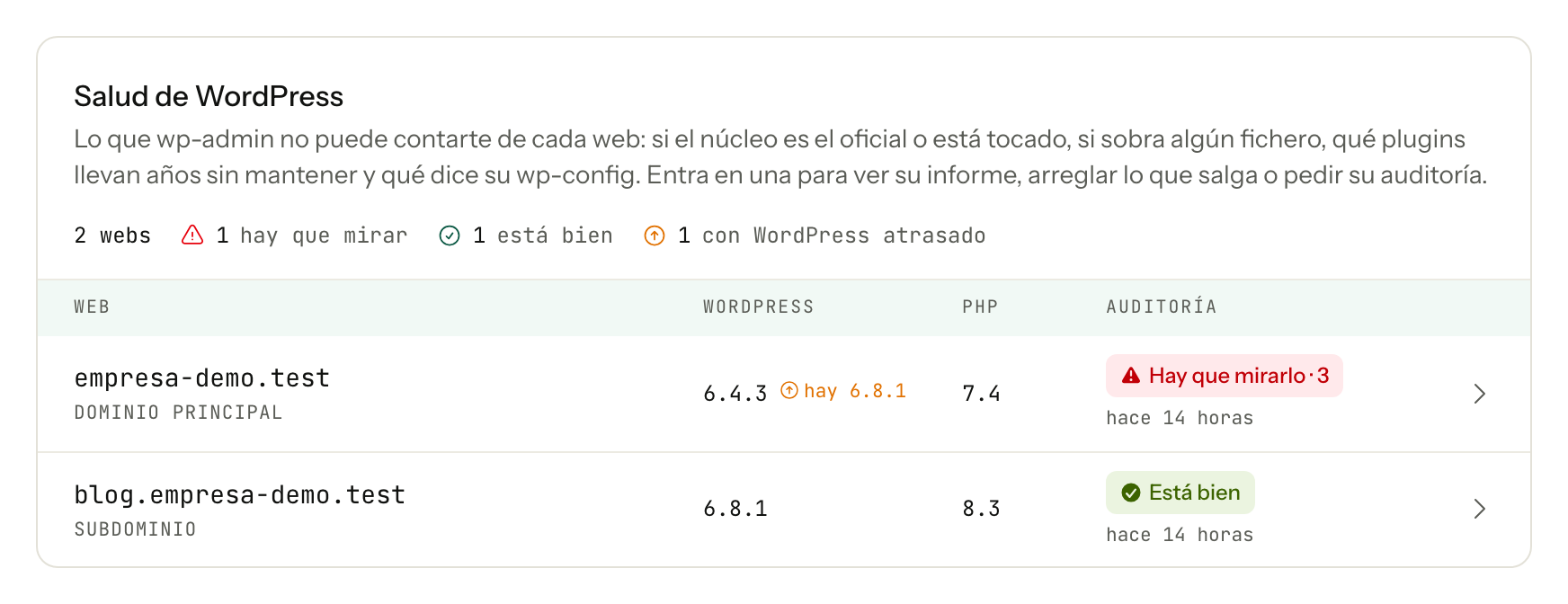
What we know without you asking
For each of your websites we already know which WordPress version it's on and which PHP version it's running, and you have that as soon as you open the screen. We read it once a day with a grep on a text file, without starting anything, so it uses absolutely nothing from your account.
And what we check when you request the audit
When you open one of your websites and request its audit, we look at four things you won't find in any WordPress panel.
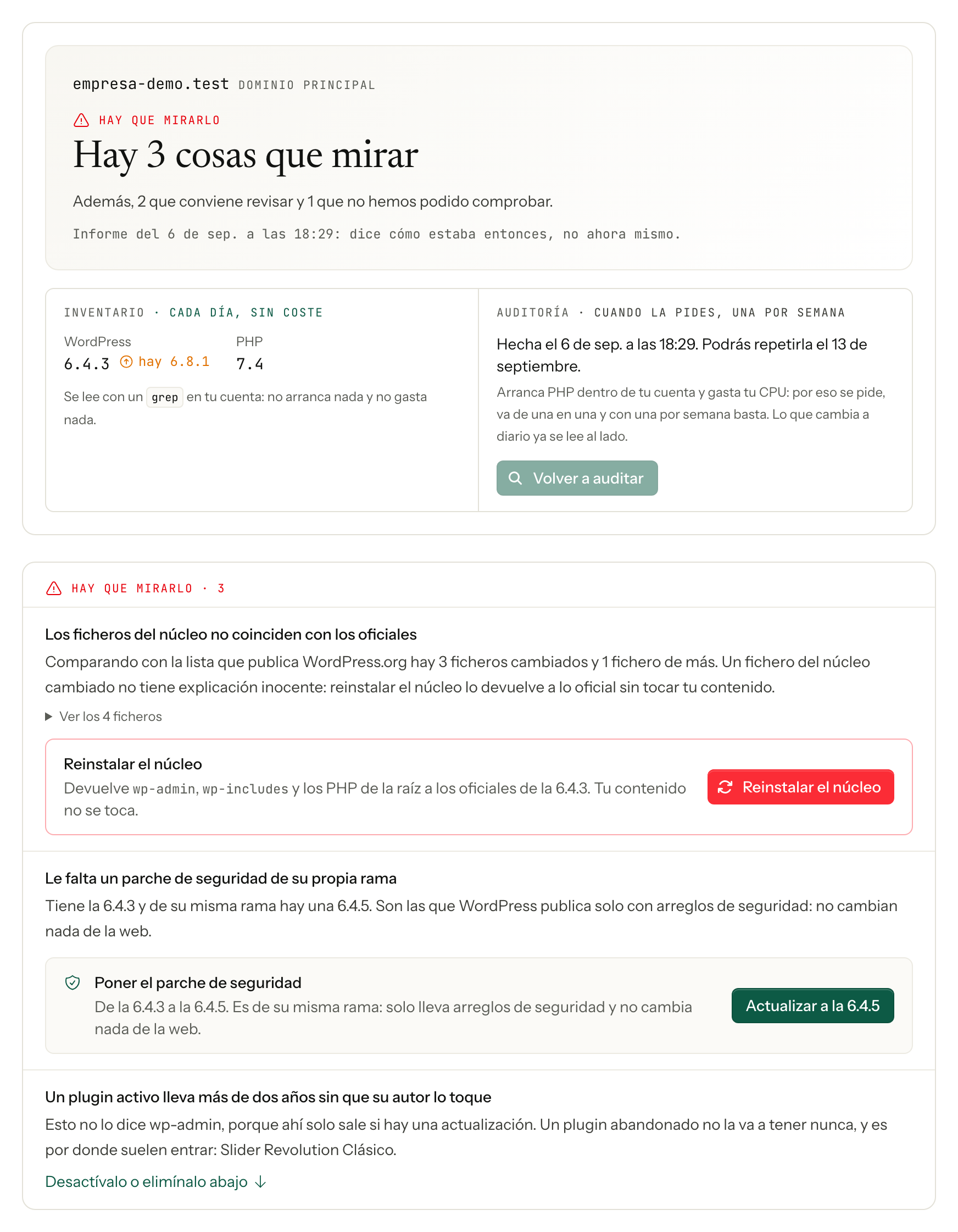
Whether the core files are the official ones. We compare them one by one with the list of checksums published by WordPress.org, and when a modified file turns up, or an extra one inside wp-admin or wp-includes, there's no innocent explanation. It's one of the clearest signs that someone has got in, and WordPress can't detect it from inside, because the attacker usually modifies precisely the files that would set off the alarm.
Whether any active plugin has gone years without its author maintaining it. We think this is one of the most useful, because in wp-admin an abandoned plugin looks exactly the same as an up-to-date one: since it will never have a pending update, it doesn't appear in any warning list. We know from experience that this is where attackers usually get in, so we check it against wordpress.org and tell you how long it's been since anyone touched it.
Whether it's missing a security patch from its own branch. This is different from a new major version being released, and it's worth telling them apart: the branch patch only contains security fixes and changes nothing on your website, whereas moving to a new branch can affect an old plugin. Seeing them together makes people postpone both.
What your wp-config.php says. Whether debugging was left on after fixing a fault, whether the wp-admin code editor is still open, or whether a maintenance mode was left half-way through an update and is keeping your website from being seen.
We don't just tell you: you can fix it right there
We felt that a panel that only diagnoses falls short and ends up as a report that leaves you with the problem, so every item that comes up has the button that solves it next to it.
From that same screen you can update, activate, deactivate or delete plugins and themes, apply the branch security patch, turn off the code editor, take the website out of maintenance mode and close all open sessions of your WordPress. That last one is what you do after an intrusion to kick out whoever got in, and until now you had to ask us.
We're a bit more cautious with deleting and ask you first, because it's the only thing on the list that can't be undone: the files can be reinstalled, but the configuration that plugin left in your database won't come back on its own.
Reinstalling the core
If the core files don't match the official ones, you can reinstall it right there. What we do is rewrite wp-admin, wp-includes and the PHP files in the root with the official ones for your same version, without touching your wp-content or your database, so your themes, plugins, uploads and content stay exactly where they are. Before overwriting anything we save a copy of the current core inside your own account, just in case.
There's a warning we'd rather give you before than after: reinstalling the core doesn't cure an intrusion. The backdoor is usually in wp-content, which is precisely where we don't go, so if that has happened to you, write to us and we'll look at it with you. We'd rather tell you than have you feel safe with the door open.
Why one a week
The audit runs one website at a time, and one a week. It's not stinginess on our part and we think the reason is sensible: that check starts PHP inside your own account and uses your CPU, the same CPU that serves your website. Running it on our own every day on every installation would be spending your resources to answer something you haven't asked.
What does change from one day to the next, the core version, we already read for free every day, so you have it alongside without waiting for anything.
And if you'd rather not handle it yourself
All of this is free and designed so you can go in, look and click whenever you like. If you'd rather not have to go in, that's Proactive+: the difference isn't in what can be done, but in who does it and how often.